학습일자 : 2026.05.28
🧭 1. 리액트 라우팅 (React Router)
리액트는 페이지가 하나뿐인 SPA(Single Page Application)이므로, 주소창의 경로(path)에 따라 매칭되는 컴포넌트(element)를 가상으로 갈아 끼워주는 기술이 필요하며 이를 라우팅이라 한다
- <BrowserRouter>: 웹 브라우저의 주소창(History API)과 리액트 앱을 유기적으로 연결해 주는 최상위 기둥
- <Routes>: 자식으로 둔 여러 <Route> 중 현재 브라우저 주소창과 일치하는 단 하나의 경로만 찾아내는 필터 역할을 함
- <Route>: 실제 주소와 컴포넌트를 매핑하는 단위
- path="/" ➡️ http://localhost:3000/ 접속 시 <SignUpPage /> 렌더링
- path="/signin" ➡️ http://localhost:3000/signin 접속 시 <SignInPage /> 렌더링
- path="/blog/index" ➡️ http://localhost:3000/blog/index 접속 시 <BlogMainPage /> 렌더링
1) src/ RouterApp.jsx 생성
import { BrowserRouter, Route, Routes } from "react-router-dom";


const RouterApp = () => {
    return(
        <BrowserRouter>
            <Routes>
                <Route path="" element='' />
            </Routes>
        </BrowserRouter>
    );
}

export default RouterApp ;
2) index.js에 삽입
import React from 'react';
import ReactDOM from 'react-dom/client';
import './index.css';
import ToyApp from './ToyApp';
import reportWebVitals from './reportWebVitals';

const root = ReactDOM.createRoot(document.getElementById('root'));
root.render(
  <React.StrictMode>
    <ToyApp />
  </React.StrictMode>
);

// If you want to start measuring performance in your app, pass a function
// to log results (for example: reportWebVitals(console.log))
// or send to an analytics endpoint. Learn more: https://bit.ly/CRA-vitals
reportWebVitals();
📡 2. HTTP 메서드와 CRUD 매핑
서버에 요청을 보낼 때 목적에 맞는 적절한 행위(Method)를 명시해야 한다.
데이터 작업 (CRUD) HTTP 메서드 Axios 함수명 특징
| Create (생성/삽입) | POST | api.post() | 회원가입, 글쓰기 등 데이터를 서버에 집어넣을 때 사용 |
| Read (조회/읽기) | GET | api.get() | 목록 조회, 상세 보기 등 서버에서 데이터를 가져올 때 사용 |
| Update (수정) | PUT / PATCH | api.put() / api.patch() | 데이터를 전체 수정(PUT)하거나 일부만 수정(PATCH)할 때 사용 |
| Delete (삭제) | DELETE | api.delete() | 데이터를 삭제할 때 사용 |
🔗 3. Query String (쿼리 스트링) 요청 방식
주소창 뒤에 ?key=value&key=value 형태로 데이터를 이어 붙여 서버로 전달하는 방식. 주로 GET 요청에서 검색, 필터링, 로그인 조건 등을 보낼 때 사용.
❌ 1) 문자열 결합 방식 (비권장)
주소 뒤에 템플릿 리터럴(```)을 이용해 직접 데이터를 붙이는 방식
- 코드 형태: api.get(users?email=${email}&password=${password})
- 단점: 가독성이 떨어지고, 문자열에 공백이나 특수문자가 들어갈 경우 주소가 깨질 위험이 있어 실무에서는 안쓰는게 좋음
⭕ 2) params 객체 활용 방식
Axios가 제공하는 두 번째 인자인 params 객체에 데이터를 담아 보냄
- 코드 형태:
api.get('users', {
    params: {
        email: email,
        password: password
    }
});
🏗️ 토이프로젝트

1) 회원가입 폼 생성
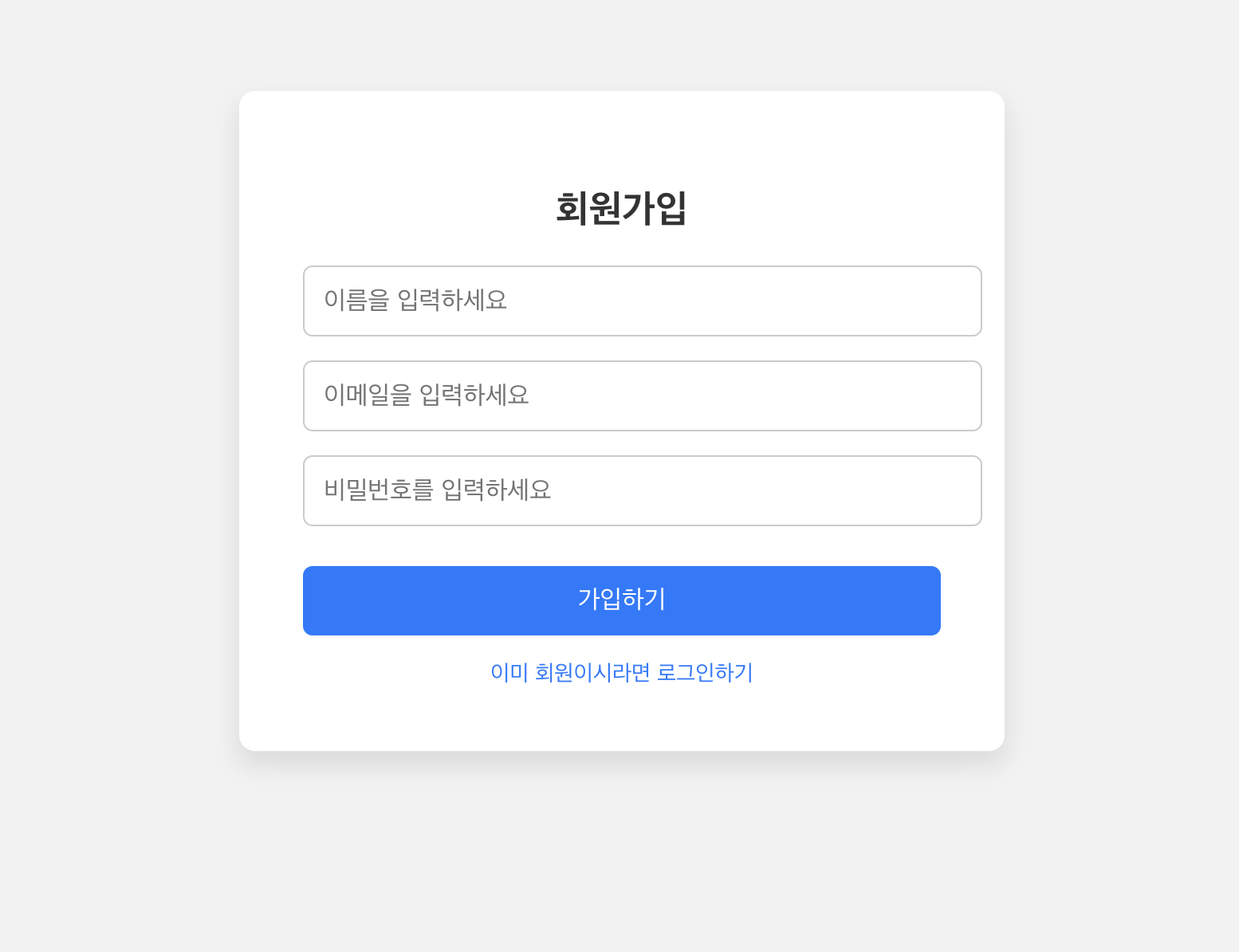
import React from 'react'
import styled from 'styled-components'
import { Link, useNavigate } from 'react-router-dom'
import { useState } from 'react'
import api from '../../../api/api'

const SignUpPage = () => {

    const navigate = useNavigate()

    const [form, setForm] = useState({
      name: '',
      email: '',
      password: ''
    })

    const onChangeHandler = (e) => {
      setForm({
        ...form,
        [e.target.name]: e.target.value
      })
    }
    const onSubmitHandler = async (e) => {
      e.preventDefault()
      const data = {
        name: form.name,
        email: form.email,
        password: form.password
      }
      await api.post('signup', data)
      .then(response => {
        console.log(response.data)
        alert('회원가입이 완료되었습니다!')
        navigate('/signin')
      })
      .catch(error => {
        console.error('Error signing up:', error)
        alert('회원가입 처리 중 에러가 발생했습니다.')
      })
      console.log(form)
    }

    // Quiz
    //     - 통신을 통해서 json-server 데이터 입력
    //     - 통신이 성공했을 때 화면을 SignInPage 이동
    //     - SignInPage 페이지는 기존 SignUpPage 에서 이름 입력부분을 제외하면 되고
    //     - 가입된 계정으로 로그인 시도했을 때 계정이 존재하면
    //     - BlogMainPage 이동
  return (
  <Container>
    <FormWrapper>
        <Title>회원가입</Title>
        <form onSubmit={onSubmitHandler}>
            <Input  type='text'
                    name='name'
                    value = {form.name}
                    placeholder="이름을 입력하세요"
                    onChange={onChangeHandler}/>
            <Input  type='email'
                    name='email'
                    value = {form.email}
                    placeholder="이메일을 입력하세요"
                    onChange={onChangeHandler}/>
            <Input  type='password'
                    name='password'
                    value = {form.password}
                    placeholder="비밀번호를 입력하세요"
                    onChange={onChangeHandler}/>
            <Button type='submit'>가입하기</Button>
        </form>
        <TextLink to="/signin">이미 회원이시라면 로그인하기</TextLink>
    </FormWrapper>
  </Container>
  )
}

export default SignUpPage;


const Container = styled.div`
  display: flex;
  justify-content: center;
  align-items: center;
  height: 100vh;
  background-color: #f2f2f2;
`;

const FormWrapper = styled.div`
  background-color: white;
  padding: 40px;
  border-radius: 10px;
  box-shadow: 0px 8px 16px rgba(0,0,0,0.1);
  width: 400px;
`;

const Title = styled.h2`
  text-align: center;
  margin-bottom: 20px;
  color: #333;
`;

const Input = styled.input`
  width: 100%;
  padding: 12px;
  margin-bottom: 15px;
  border-radius: 6px;
  border: 1px solid #ccc;
  font-size: 16px;

  &:focus {
    outline: none;
    border-color: #007bff;
    box-shadow: 0 0 5px rgba(0,123,255,0.3);
  }
`;

const Button = styled.button`
  width: 100%;
  padding: 12px;
  background-color: #007bff;
  color: white;
  border: none;
  font-size: 16px;
  border-radius: 6px;
  cursor: pointer;
  margin-top: 10px;

  &:hover {
    background-color: #0056b3;
  }

  &:disabled {
    background-color: #aaa;
    cursor: not-allowed;
  }
`;
const TextLink = styled(Link)`
  display: block;
  text-align: center;
  margin-top: 15px;
  font-size: 14px;
  color: #007bff;
  text-decoration: none;
  cursor: pointer;

  &:hover {
    text-decoration: underline;
  }
`;
2) 로그인 폼

import React from 'react'
import styled from 'styled-components'
import { Link, useNavigate } from 'react-router-dom'
import { useState } from 'react'
import api from '../../../api/api'

const SignInPage = () => {

    const navigate = useNavigate()

    const [form, setForm] = useState({
      email: '',
      password: ''
    })

    const onChangeHandler = (e) => {
      setForm({
        ...form,
        [e.target.name]: e.target.value
      })
    }

    const onSubmitHandler = async (e) => {
      e.preventDefault()

      try {
        // json-server에서 이메일과 비밀번호가 일치하는 데이터가 있는지 조회 (GET)
        const response = await api.get('signup', {
          params: {
            email: form.email,
            password: form.password
          }
        })

        // 일치하는 데이터가 배열 형태로 반환되므로, 길이가 0보다 크면 계정이 존재하는 것
        if (response.data.length > 0) {
            //인증된 사용자 정보(token)를 유지할 수 있어야 함.
            // 현재 기준으로 sessionStorage, localStorage 사용하여
            // 인증된 사용자 정보를 저장하고 공유할 수 있다
            alert('로그인 성공!')
            console.log(response)
            localStorage.setItem("token", response.data[0].email)
            navigate('/blog/index')
        } else {
            alert('이메일 또는 비밀번호가 일치하지 않습니다.')
        }
      } catch (error) {
        console.error('Error signing in:', error)
        alert('로그인 처리 중 에러가 발생했습니다.')
      }
    }


    // const onSubmitHandler = (e) => {
    //   e.preventDefault()

    //   api.get('signup', {
    //     params: {
    //       email: form.email,
    //       password: form.password
    //     }
    //   })
    //   .then(response => {
    //     // 일치하는 데이터가 배열 형태로 반환되므로, 길이가 0보다 크면 계정이 존재하는 것
    //     if (response.data.length > 0) {
    //         alert('로그인 성공!')
    //         navigate('/blog/index')
    //     } else {
    //         alert('이메일 또는 비밀번호가 일치하지 않습니다.')
    //     }
    //   })
    //   .catch(error => {
    //     console.error('Error signing in:', error)
    //     alert('로그인 처리 중 에러가 발생했습니다.')
    //   });
    // }

  return (
  <Container>
    <FormWrapper>
        <Title>로그인</Title>
        <form onSubmit={onSubmitHandler}>
            <Input  type='email'
                    name='email'
                    value = {form.email}
                    placeholder="이메일을 입력하세요"
                    onChange={onChangeHandler}/>
            <Input  type='password'
                    name='password'
                    value = {form.password}
                    placeholder="비밀번호를 입력하세요"
                    onChange={onChangeHandler}/>
            <Button type='submit'>로그인하기</Button>
        </form>
        <TextLink to="/">아직 회원이 아니시라면 가입하기</TextLink>
    </FormWrapper>
  </Container>
  )
}

export default SignInPage;

const Container = styled.div`
  display: flex;
  justify-content: center;
  align-items: center;
  height: 100vh;
  background-color: #f2f2f2;
`;

const FormWrapper = styled.div`
  background-color: white;
  padding: 40px;
  border-radius: 10px;
  box-shadow: 0px 8px 16px rgba(0,0,0,0.1);
  width: 400px;
`;

const Title = styled.h2`
  text-align: center;
  margin-bottom: 20px;
  color: #333;
`;

const Input = styled.input`
  width: 100%;
  padding: 12px;
  margin-bottom: 15px;
  border-radius: 6px;
  border: 1px solid #ccc;
  font-size: 16px;

  &:focus {
    outline: none;
    border-color: #007bff;
    box-shadow: 0 0 5px rgba(0,123,255,0.3);
  }
`;

const Button = styled.button`
  width: 100%;
  padding: 12px;
  background-color: #007bff;
  color: white;
  border: none;
  font-size: 16px;
  border-radius: 6px;
  cursor: pointer;
  margin-top: 10px;

  &:hover {
    background-color: #0056b3;
  }

  &:disabled {
    background-color: #aaa;
    cursor: not-allowed;
  }
`;

const TextLink = styled(Link)`
  display: block;
  text-align: center;
  margin-top: 15px;
  font-size: 14px;
  color: #007bff;
  text-decoration: none;
  cursor: pointer;

  &:hover {
    text-decoration: underline;
  }
`;
# 오늘의 회고
이론으로만 배우던 리액트 핵심 문법들을 토이 프로젝트라는 실전 무대에 직접 던져보며 완벽하게 내 것으로 만든 하루였다. Router를 통한 구조적 페이지 설계부터 Axios 비동기 통신, 그리고 localStorage 기반의 토큰 관리를 통한 회원가입/로그인 인증 메커니즘까지 폼 제어의 전 과정을 직접 구현해 보았다. 특히 유저 토큰의 유무에 따라 화면이 유동적으로 변하는 조건부 렌더링 패턴을 적용해 보면서, 독립적인 컴포넌트들이 어떻게 데이터를 공유하고 화면을 갱신하는지 그 실질적인 제어 흐름을 체득할 수 있어 좋은 실습이었다.